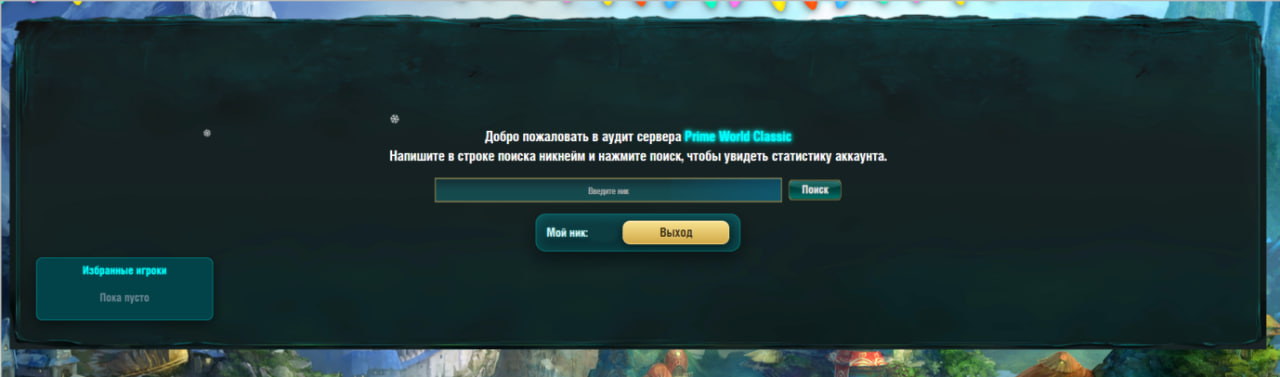
Welcome to the Prime World Classic statistics server
Enter a nickname or player ID in the search to open a profile.
Favorite players
Crystals history
Current balance
0
Total earned
+0
Total spent
-0
Audit (expected balance)
0
Service check: everything earned minus everything spent.
No operations.
Account rating history
Account rating0
Recruit
Match: 0
No match history data.
Audit help
The home page helps you quickly find a player and open their profile.
Enter a nickname or an ID in the search box — the profile opens with all the statistics of the account. The screenshot was taken before the top bar was reworked.
What the main page offers
Player profile
Search
This area shows the player nickname. You can add the profile to favorites for quick access.
The star next to a nickname adds the player to favourites, so they show up on the main page.
Prime crystals
Currency
Shows the amount of prime crystals in the castle and the change history. This currency is used to buy cosmetics in the game: flags, frames, and skins. It can be earned by completing castle quests.
Battle analytics
Statistics
Shows player activity overall and for a selected period, including the last 14 days.
Profile sections
When you open a profile you land on the column of sections to the left of the content; on a narrow screen it turns into a scrollable row at the top. The sections switch the content of the page, and the address changes with them — a link to the section you need can be copied and sent.
"Player profile" - the header with level and title, level progress, combat analytics, featured achievements and the most played heroes. Opens first.
"Heroes" - every hero the player has taken into battle at least once: matches, win rate and a link to a single hero screen.
"Match results" - the list of played battles with filters and a "Details" button on each row.
"Insulator" - every player on the server who currently has an active ban or mute. It is a server-wide list, not the punishments of the open profile.
"Favourites" - players you marked with a star so you can return to them in one click.
"Achievements" - all server achievements: unlocked, in progress and not started.
"Hall of fame" - the weekly server top 10 by win rate, account rating, heroes and charisma.
The column of sections stands to the left of the content — the chosen one is highlighted. The screenshot is old: it shows four sections, there are seven of them now.
Top bar: help, theme, language
A narrow bar runs above the search field, the same on every page of the site. On the left is a golden coin with a question mark, on the right the theme switch and the language code.
The question mark coin
Top bar
Opens this help. It is split into tabs by site section and opens without leaving the page: everything under the window stays where it was. Close it with Esc, by clicking outside the window, or with the "Close" button.
The help button in the left corner of the top bar.
Theme
Top bar
The half-filled circle switches between the light and the dark look. The choice is remembered in this browser and applied before the page is first painted, so nothing flashes on load. The theme changes colours only - never the data or the numbers.
Interface language
Top bar
The button with the language code ("RU") opens a list: Russian, English, Ukrainian, Belarusian, Kazakh, Chinese. You can walk the list with arrow keys. Only the site labels change - nicknames and hero names come from the server and stay as they are.
Favourite players
Favourites is your own list of players you keep an eye on. Nobody else sees it, and it does not affect the players themselves in any way.
The star: hollow means the player is not on the list, filled means they are.
The star sits in the search results, next to every player found. The first press adds to favorites, a second one removes; you can also remove a player from the favorites list itself.
Marked players show up in the "Favourite players" panel on the main page and in the "Favourites" tab inside a profile.
Besides the nickname, a row shows the account rating, WR, ID and the date it was added. If the account is gone, "account not found" is shown instead of numbers - that is more honest than zeros.
A note under the list says where it is kept: "Saved in your account" means the list follows you to another device; "Saved in this browser only" means it stays here.
Short glossary
The words you meet on the site most often. Each of them is explained in full in its own help tab; here is just the meaning in a line or two.
This mark on a page means a hint: hover or tap it and an explanation appears.
Account rating - the strength of the player as a whole, one number for the entire profile. Matchmaking and the team balance in the lobby are based on it.
Hero rating - an entirely different number: every hero has one, and separately in every mode. Play one hero in Borderlands and only that hero's Borderlands rating moves.
WR (win rate) - the share of wins in percent: wins divided by matches. After two or three battles the number still means nothing.
K/D/A - kills, deaths and assists of one battle, three numbers separated by slashes. "Average KDA" is not three numbers but one: (kills + assists) divided by deaths.
Rating delta is a difference, not a total: "+18" means "18 more than before". "0" means the rating did not change for that battle.
Level and experience (XP) - progress on the site, not in the game. XP comes from played matches and unlocked achievements; level has no effect on matchmaking.
Rank is the wording and the medal that a number puts there. An account rank comes from the account rating, a hero rank from that hero's rating in a mode, and the title next to the nickname comes from the level.
Charisma - votes from other players: "Friendly", "Mentor", "Leader" and dislikes counted separately. One vote per player per day.
Prime crystals - the in-game currency from the castle. They are spent on cosmetics: flags, frames, skins. The site shows the balance and the history of operations.
A ban closes access to the game. A mute closes chat and voice only - you can still play.
Punishment level is a repeat counter, not the severity of the offence. Every further punishment of the same kind raises the level, and the term grows with it.
"Remaining" - how long the punishment is still in force, shown as "2 d. 5 h. 30 min.". It is what is left, not the whole term.
A report is a complaint about someone else's behaviour in a battle. It is filed from the offender's profile within two hours of a shared match.
An appeal is the opposite: disagreement with YOUR OWN punishment. It is filed from your own profile within two days of the punishment being issued.
Favourites - your personal list of players marked with a star. Only you can see it.
Hall of fame - the weekly server top 10. It is rebuilt once a week, so a fresh record will not show up there immediately.
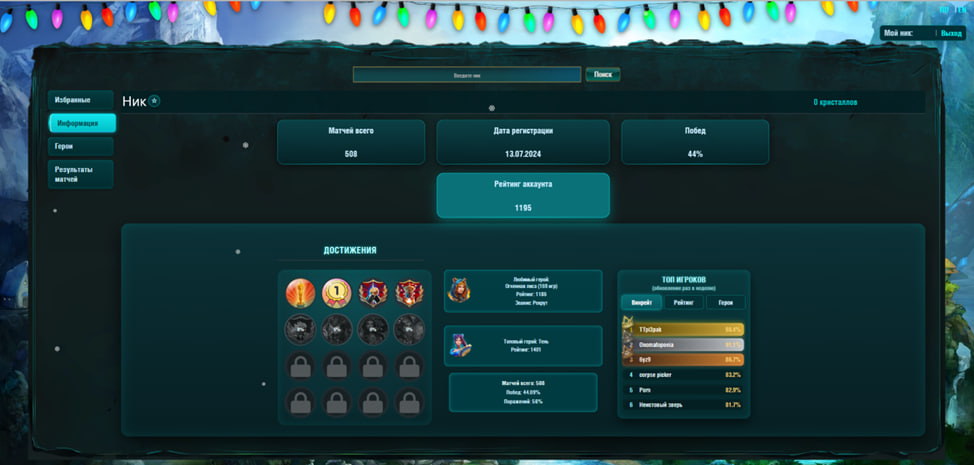
The “Player profile” section is the first one in the column of sections. It holds the header with the name and the level, the match analytics, the “Modes” card and two showcases: featured achievements and favourite heroes.
This is what the first section of the profile looks like. The screenshot was taken before the page was reworked — the blocks on it are still in their old places.
The page includes help for charisma, progression, and account rating.
The profile header, piece by piece
The first thing you see in a profile is a wide card with the player's name. Let us read it left to right and top to bottom.
The "Notifications" (bell) and "Customise profile" buttons exist only on your own profile - on someone else's page they are not there.
The circle with a letter is the avatar. Players have no pictures of their own: the circle holds the first letter of the nickname, and the frame comes from the profile appearance.
The circle with a number at the edge of the avatar is the player level. Hover it — the tooltip says how much experience has been earned and how much is left; click it — the “Player progress” window opens with the breakdown.
The large line is the nickname. It comes from the game server and is never translated on the site.
The badge with a diamond under the nickname is the title. The level sets it: the higher the level, the "richer" the word. A player with a handful of matches shows "Newcomer" instead.
There is no achievement or hero showcase in the header any more: it moved to the first tab as two cards — “Featured achievements” and “Favourite heroes”. The owner of the profile picks what is shown there.
The small line “slots: …” under the title lists what parts of the appearance are worn right now: frame, skin, effect. Empty slots are not listed, and when nothing is worn there is no line at all.
A row of buttons follows. Some of them are only visible to the profile owner - on someone else's page they simply are not there.
Send report
Header buttons
The red button files a complaint about this player. It is also how you sign in if you have not yet. On a newcomer's profile the button is disabled: reports on newcomers are not accepted while they have few games.
This is how the report button looks in the row of actions.
Charisma
Header buttons
Opens the "Social actions" drawer: it holds the vote counters by category and the buttons that cast a vote. There is no charisma block on the page itself - everything lives in that drawer.
Crystals
Header buttons
The diamond and the number next to it are the current prime crystal balance. Clicking it opens the history of operations.
A prime crystal.
The bell
Header buttons
Notifications. The circle with a number on the bell is how many messages you have not read. The button exists on your own profile only.
Signing in and out
Header buttons
Right after “Submit report” comes the sign-in: while you are signed out it says “Login”, after signing in it says “Logout” with your nickname on the button. This is the only place on the site where you can see who you are signed in as.
Customise profile
Header buttons
The appearance of your own page: sets, the avatar frame, the banner, the background and the colour. It opens as a window over the profile. The button is visible only to the owner, but the result is visible to everyone.
Profile metrics
Player charisma
Social system
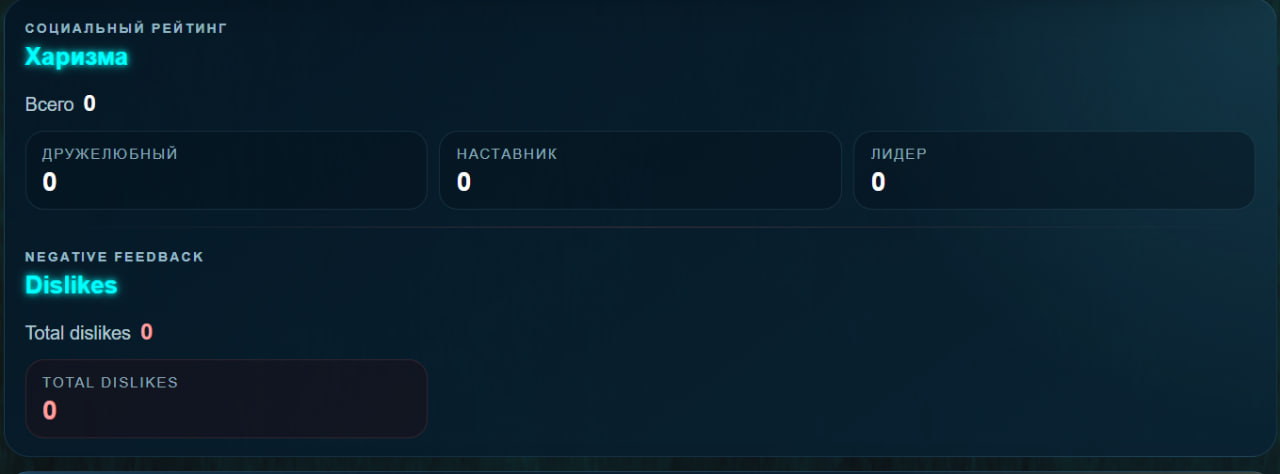
After signing in, you can rate a player once per day. Charisma shows social feedback from other players: positive votes can be earned for friendliness, leadership, and helping the team, while the negative part reflects dislikes and unsporting behavior.
All of it opens from the "Charisma" button in the profile header. The drawer holds three positive category cards with counters, "Total" and "Dislikes" separately, and below them the buttons "+ Friendly", "+ Mentor", "+ Leader" and "- Dislikes". There is no separate "Send" step: the vote is cast on click, and it will not repeat for that player on the same day. You cannot rate yourself, and reports do not affect charisma.
Positive votes are split by category, dislikes are counted separately. The screenshot is old: all of this now lives in the “Social actions” drawer, not as a block on the page.
Player progression
XP and levels
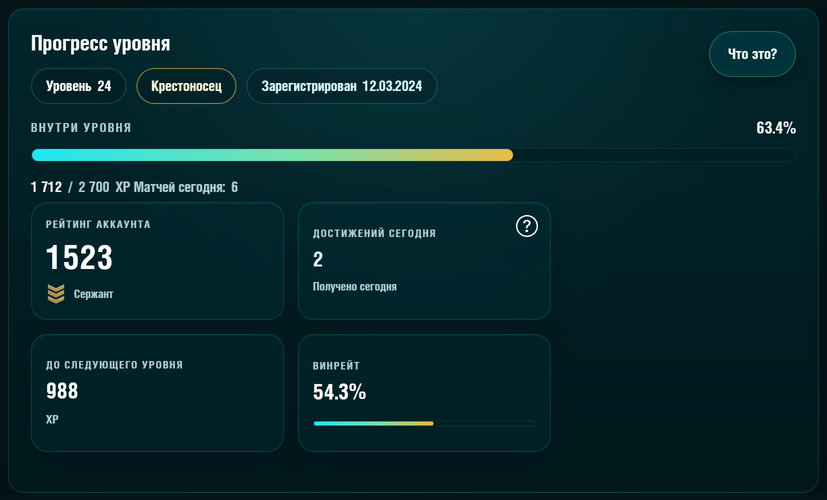
The progression block shows the level, current rank, XP to the next level, and daily activity. XP is granted for matches and unlocked achievements, so players can clearly see what advances their progress.
All of this lives in the “Player progress” window: it is opened by the level circle next to the avatar. Every number in it is explained below, in the “Level progress piece by piece” section.
The whole progress window. The screenshot was taken before the rework: the “What is this?” button and the “Inside the level” caption are gone from the window, and there are two tiles now, not four.
Account rating
Rating history
Account rating affects team matchmaking and the team balance value in the lobby. Characters gain and lose rating depending on account rating: the higher it is, the more rating is awarded for a win and the less is removed for a loss. Clicking it opens the account rating history.
Click the image to open it full size: account rating on the left, hero rating on the right.
Player level and rank
The circle with a number on the avatar in the profile header is the current level of the player. It is clickable: the “Player progress” window opens with the experience bar and a breakdown of where the experience came from. The level grows from accumulated experience and is not connected to the account rating in any way: the rating decides matchmaking, the level decides progress and the title.
Experience (XP) is given for matches played and for achievements unlocked — the “Player progress” window shows how much arrived today and how much over all time.
Every next level costs more than the previous one: 400 XP from level 1 to 2, 500 XP from 2 to 3, and +100 XP for each level after that.
The bar in the progress window shows the experience earned inside the current level, and the “To next level, XP” tile shows how much more is needed.
The maximum level is 50. After it the bar is full, and instead of the remainder it says “Level cap reached”.
The level sets the title — the word on the plate under the nickname: level 1 is “Private”, level 3 is “Chief warrior”, level 6 is “Fearsome fighter”, and so on up to “Hegemon” at level 49. The medal rank is a different thing: it comes from the account rating, not from the level.
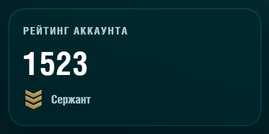
The medal is the rank given by the account rating. “Recruit” starts at 1100 rating; when the rating grows, the medal changes. It does not depend on the level.
Level progress piece by piece
The window is called “Player progress” and is opened by clicking the level circle next to the avatar. It closes with the “Close” button, the Esc key, or by clicking outside the window.
In the head of the window: “Player progress”, below it the line “Level N” and next to it the rank by account rating.
The bar below them is the share ALREADY COVERED inside the current level, not the remainder. The percentage is not written on the screen: hover the bar or focus it from the keyboard — the tooltip names both the percentage and the total experience.
Under the bar: “N / M XP; matches today: K” — on the left the experience earned inside the current level, on the right the size of the whole level. The total experience over all time does not go here.
"Matches today" counts battles for the current day. A zero here means the player has not played today, not that there are no matches at all.
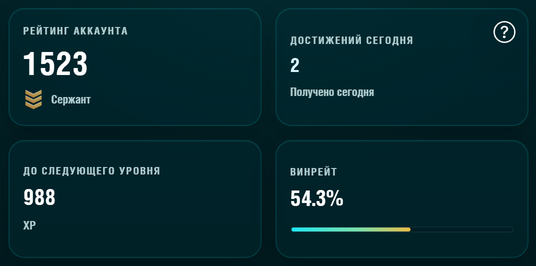
The “Achievements today” tile — how many achievements were unlocked in the last day, not over all time.
The “To next level, XP” tile — how much experience is still needed. It is the mirror of the bar: the bar answers “how much is done”, the tile answers “how much is left”.
At the level cap the remainder is replaced by "Level cap reached" - there is no next level any more, and a zero here would say the opposite.
Below the tiles there are three breakdowns: “What this level is” (level, title, next title, rank by rating), “Where the experience came from” (from matches, from achievements, admin bonus, total) and “Today” (matches and achievements over the last day together with the experience for them).
The account rating and the win rate are no longer in this window: both moved to the summary of the “Modes” card on the first tab. The rating history is opened by the rating number itself over there.
The bar shows how much is ALREADY COVERED inside the level, not how much is left. The screenshot was taken before the rework: the “Inside the level” caption and the percentage on the right are gone from the window.The screenshot was taken before the rework: there are four tiles here, but only two in the window — “Achievements today” and “To next level, XP”. The rating and the win rate moved to the “Modes” card.The medal and the word under the number are the rank this rating gives. Look for it in the “Modes” card on the first tab, not in the progress window.
Account rating and hero rating are different numbers
The word "rating" appears in two places on the site and means two different things. Comparing them will never add up - and it is not supposed to.
Account rating
Rating history
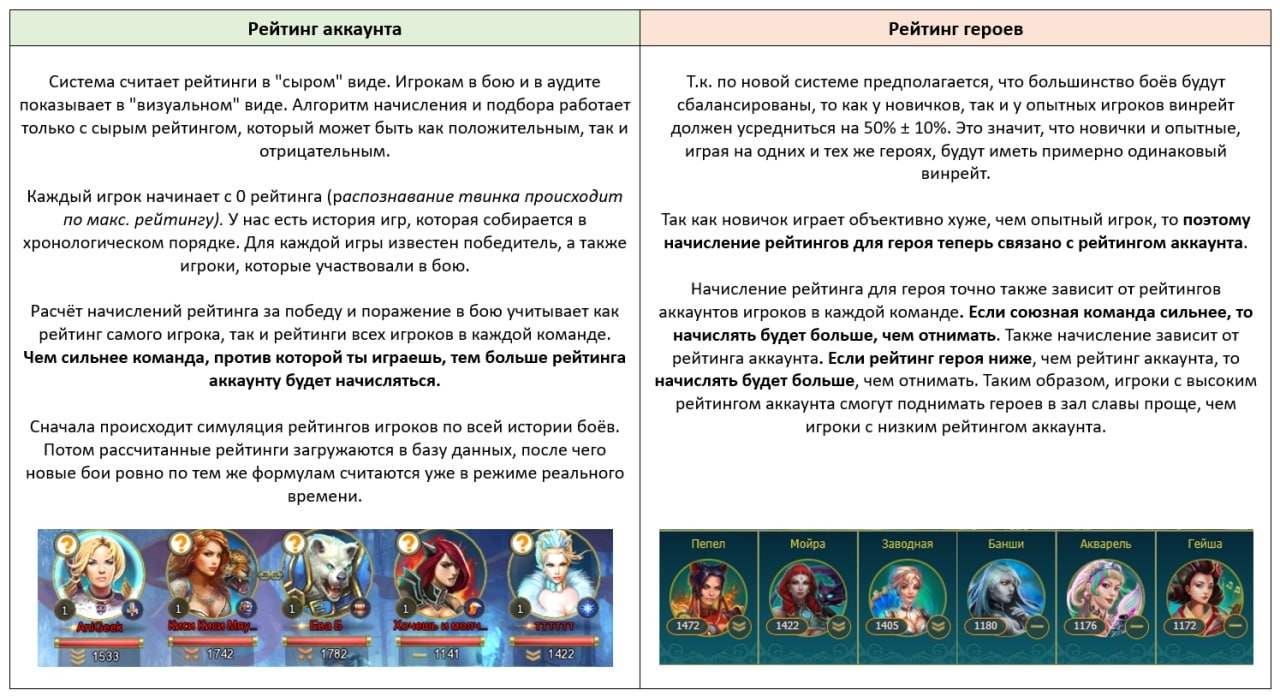
One number for the whole profile. It does not depend on which hero you played and lives in the header of the "Level progress" block. Matchmaking and the team balance in the lobby are based on it. It also sets the size of a hero's gains: the higher the account rating, the more points a win gives and the fewer a loss takes.
Hero rating
Rating history
A number of its own for every hero, and a separate one in every mode. The same hero has different ratings in Borderlands and in Outpost, and they grow independently. Look them up on the hero screen: "Hero ratings reached per mode".
And neither of them is the level
XP and levels
Level is a third, completely separate value. It grows from XP for matches and achievements, never falls, and has no effect on matchmaking at all. A high level with a low rating means one thing only: this person has played a lot.
On the left the account rating rules, on the right the hero rating rules. Click the picture to open it large.
Combat analytics
The "Combat analytics" block on the first tab answers "how is this person playing now", not "how much have they played in total". Almost all of its numbers are counted over recent battles, not over all time.
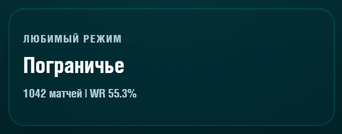
"Favourite mode" - the mode with the most battles. The note under the name says how many matches are there and what the win rate is in it.
"Form over 10 games" - how many wins out of the last ten battles, shown as "7/10". It is the fastest way to see whether a streak is running.
"Activity over 14 days" - how many battles were played in two weeks. The note "matches played" refers to that window only, not to the whole history.
"Average KDA" - one number instead of three: kills and assists are added together and divided by deaths. Above two is a good showing, around one is an even trade. The "?" next to it shows the formula.
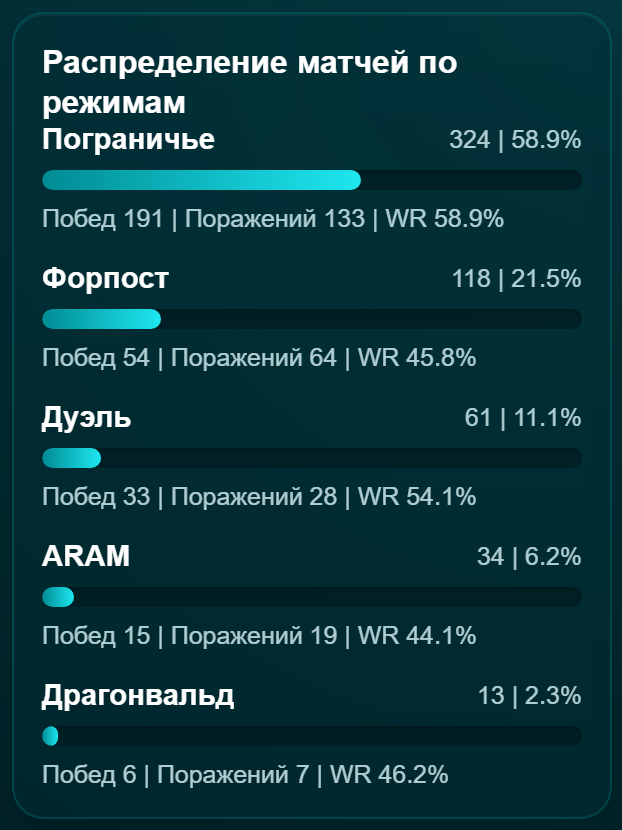
"Match distribution by mode" - a row per mode: how many battles, what share of the total, a bar the same length, and under it the wins, losses and win rate of that mode.
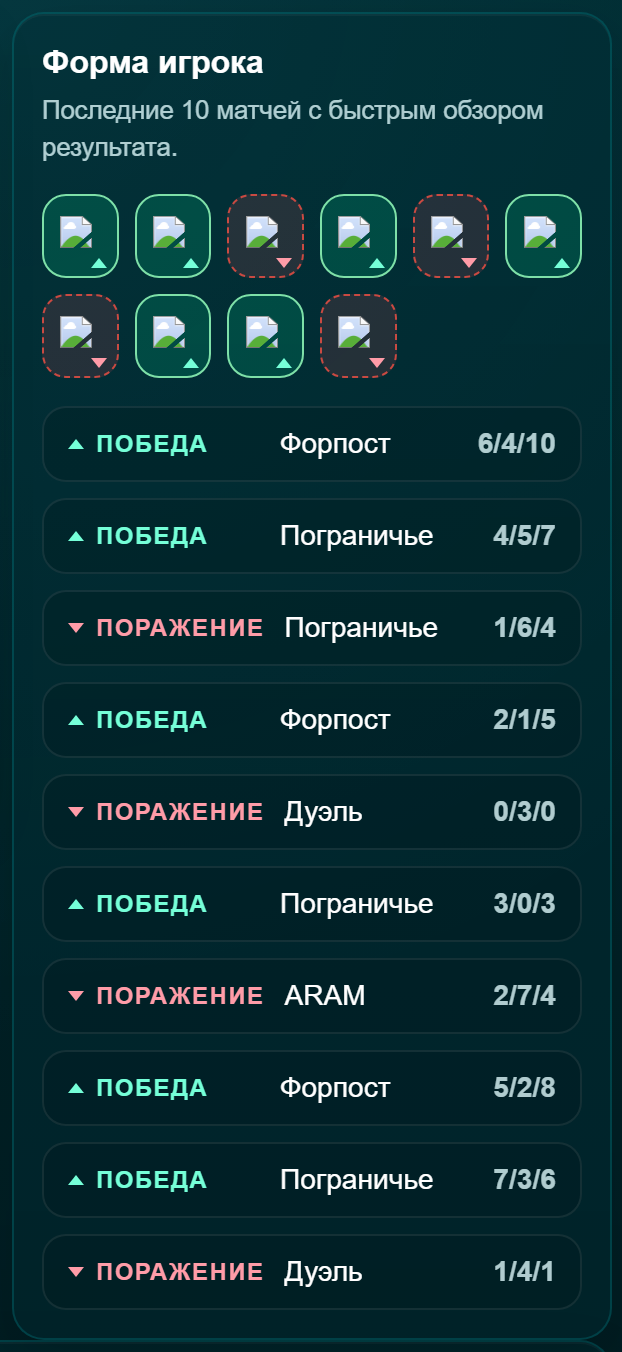
"Player form" - a strip of ten icons for the latest battles. Hovering an icon shows the outcome, the mode and the KDA of that battle.
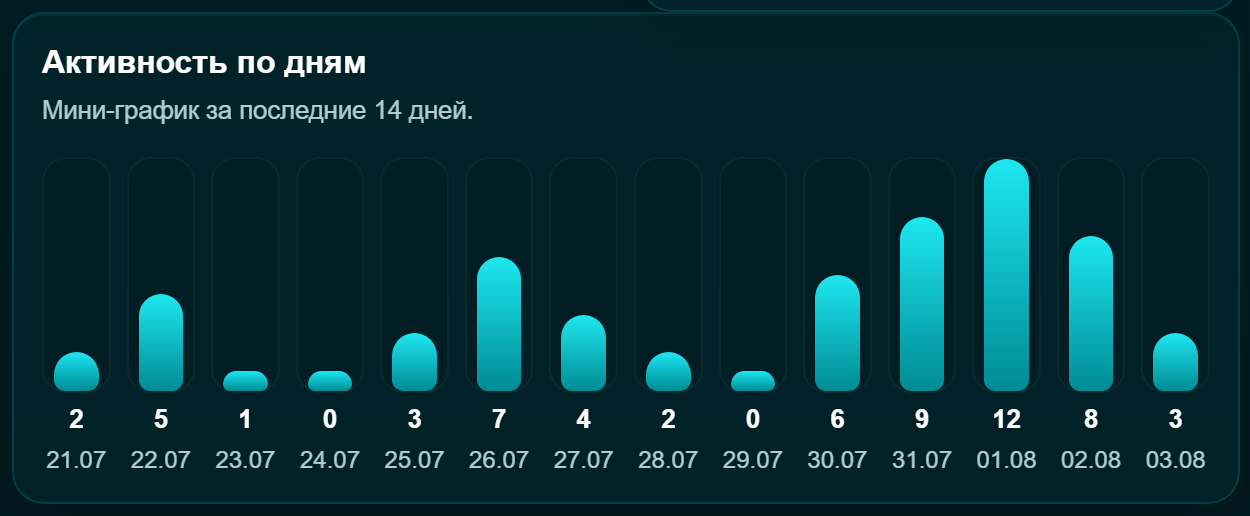
"Activity by day" - bars for the last 14 days. An empty day means the player did not play that day.
Every analytics tile is built the same way: label, value, small note.A row per mode: match count and share on the right, a bar of the same length, and under it the wins, losses and WR of that mode.The form strip: the ten latest battles as icons, and the same battles below as rows with mode and K/D/A.One bar per day. Under the bar is how many battles were played, below that the date. A zero means the player did not play that day.
In "Average KDA" and in the form strips the order of the numbers is always the same: kills, deaths, assists.
K — killsD — deathsA — assists
Achievements and the featured showcase
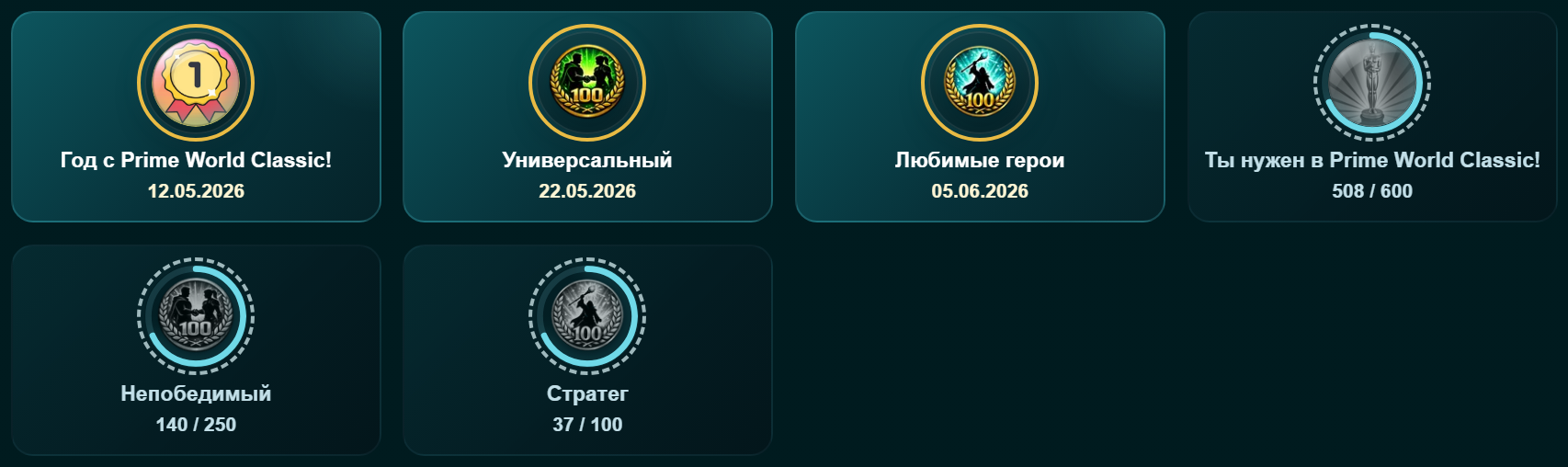
Achievements are marks for fulfilled conditions: play so many battles, win in a mode, reach a hundred on one hero. Every unlocked achievement grants XP, which is why the level grows from more than matches alone.
This is what an unlocked achievement icon looks like.
In the "Achievements" tab three buttons sit above the grid: "All", "Unlocked", "In progress". On the right is a counter shaped like "Achievements unlocked: 12 / 40 - 30%".
An unlocked tile carries the unlock date, a locked one carries progress like "508 / 600" and a ring around the icon. Everything else - description, rarity, dates - is shown by the tile's hint.
Rarity is spelled out: "Common", "Uncommon", "Rare", "Epic", "Legendary". Separately there is a "Unique achievement" - those are granted by hand and cannot be repeated.
Grey tiles labelled "Unavailable" are the empty slots that pad out a grid row, not hidden achievements.
An unlocked achievement is labelled with a date, a locked one with a "gained / needed" count, and the ring around the icon shows the same share.
The featured achievements showcase is the set of achievements the profile owner chose to show first. It appears in three places:
The “Featured achievements” card on the first tab of the profile. Its caption also states the limit: the player picks up to six. Next to it stands the second showcase — “Favourite heroes”, with five places in it.
Places in the showcase that are not taken are shown as empty circles, and if the player has picked nothing at all, a line saying so stands instead of the showcase.
The picking screen belongs to the owner of the profile only, inside the “Profile settings” window. There you tick what to show: the counter “Selected 3 of 6” and the save button. The order on the page is the same as the order you ticked in.
Hall of fame
The hall of fame is a separate tab with the weekly server tops. It is the only place where other people's results stand next to yours.
The crown marks the upper places of a top.
"TOP PLAYERS" - the top by share of wins.
"Rating" - the top by account rating.
"Heroes" - the top by hero rating; the row shows which hero it is about.
"Charisma" - the top by votes from other players.
A row holds: a square with the place number, the nickname as a link, a second line of facts (rating, match count, win rate) and a large value on the right - the one this top is built on.
The lists are rebuilt once a week. Yesterday's winning streak will only appear here after the next update - that is not a bug.
Profile styling
The "Customise profile" button in the header opens the styling of your own page. Everyone who visits the profile sees the settings, but only the owner can change them.
"Banner" - the wide picture behind the profile header.
"Page background" - the backdrop of the whole page. A separate "No background" button brings back the plain look.
"Accent" - the colour of frames and highlights in the profile.
The lists show both what you already own and what is on sale for crystals: next to every item its state is written — “Worn”, “Available” or the price. Some items are handed out as season rewards and at events, some are bought as sets.
Some banners are drawn for a set - a hint will offer to apply the matching background and accent in one click so everything lines up by colour.
A set you are wearing can be taken off with the “Take off” button — the profile goes back to its plain look, and what you bought stays yours.
Sets, frames, prices and the order of buying are covered in detail in the "Account" tab, section "Profile appearance".
The “Heroes” section shows the player heroes, their rating, and win count.
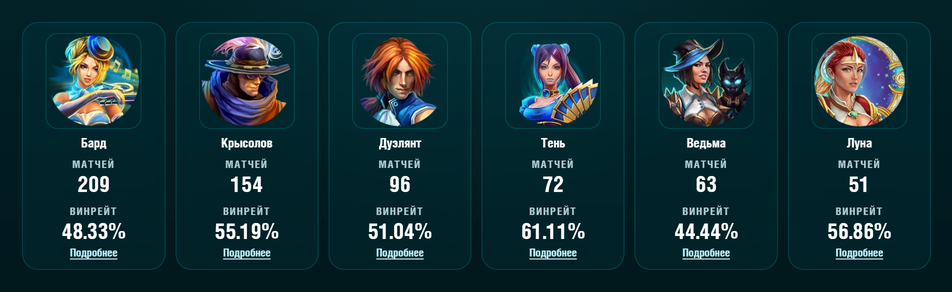
A hero card shows the match count and the win rate; the "Details" button opens that hero's screen.
Each hero has match history and rating change history.
The hero list and the bar above it
Only heroes the player has taken into battle at least once make it into the list. A hero they never picked will not be there - nothing has been lost.
The "Hero search" field with a "Find" button filters heroes by name. While a search is running the counter on the right shows "5 of 23 heroes" - how many were found and how many there are in total.
Three sort buttons: "By matches", "By win rate", "By rating". The selected one is highlighted. Sorting only changes the order of the cards, it removes nobody from the list.
A card holds: the portrait, the hero name and two labelled tiles - "Matches" and "Win rate". The "Details" button opens that hero's screen.
An empty list says "No hero data", and a search that found nothing says "Nothing found".
The bar above the grid: search on the left, sorting in the middle, the counter on the right.One card of the grid, close up.
Hero card
The “Details” button on a hero card opens the screen of a single hero. The portrait and the hero name are on the left, and three numbers sit under them: “Wins”, “Matches” and WR. They are counted for this hero only and only across the modes listed below.
The portrait and the hero name are on the left side of the screen — they tell you whose statistics is open.The hero's three numbers. Under the WR percentage sits a bar of the same length.
WR — win share
Figures
WR (win rate) is the percentage of wins on this hero: wins divided by matches. It is the headline number of the card, so it is larger than the rest and carries a bar as long as the percentage itself. With two or three matches WR means nothing yet: 100% out of one battle and 100% out of a hundred are different things.
Wins
Figures
How many battles on this hero ended with a win for the player’s team. Personal kills do not affect this number — the result of the whole team is what counts.
Matches
Figures
How many battles have been played on this hero in total. This is the denominator of WR: the more matches, the more honest the win percentage.
Hero ratings reached per mode
The hero rating is counted separately in every mode. In the list to the right of the portrait one row is one mode: the mode name on the left, the rank medal with a number under it on the right. The number is the rating this hero reached in that exact mode, and the medal with its caption shows which rank that rating corresponds to. In the castle the game shows the Borderlands rating only, so the other modes can be seen here alone.
The medal is neither an award nor a separate item: it is the picture of a rank, chosen by the number itself. If the rating drops, a lower medal comes back. The starting value for any hero in any mode is 1100, that is “Recruit”.
There are four rows in the list, one per rated mode: Borderlands, Outpost, Dragonwald and ARAM. A mode the hero has never played is still shown - with the starting 1100, that is, "Recruit". A "?" mark next to the heading repeats the same rule briefly.
All four modes at once. The number and the rank in each tile are its own - for one and the same hero.One tile close up: insignia, mode, rating, rank.Recruit — 1100Sergeant — 1500Colonel — 2000Marshal — 2200
The rank is taken by the closest threshold already passed: 1499 is still Corporal, 1500 is already Sergeant.
Match history table
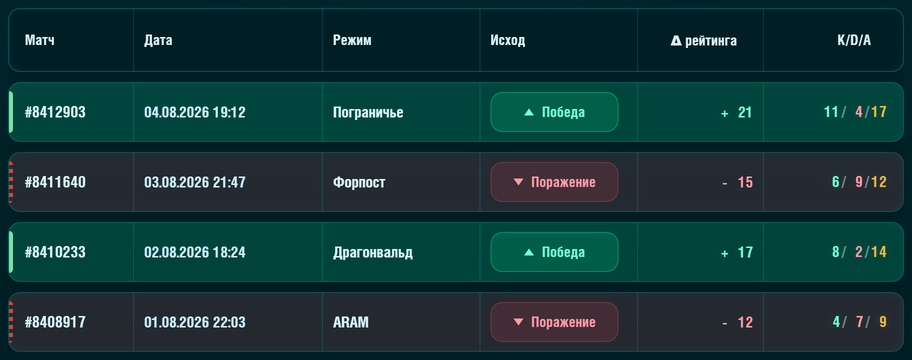
The history of the hero’s battles sits under the hero card — one row per match. Six columns:
“Match” — the battle number, like #123456. It is a link: it opens the match details with both team rosters.
“Date” — when the battle was recorded, in the “dd.mm.yyyy hh:mm” format.
“Mode” — the mode the battle was played in. The hero rating is separate in every mode, so this column matters for reading the next one.
“Outcome” — “Win” or “Loss” as a badge. The mark of a win points up and the mark of a loss points down, so the outcome reads without colour too.
“Rating delta” — how much the hero rating changed in this battle.
“K/D/A” — kills, deaths and assists for the battle, three numbers separated by slashes.
Victory - pointing upDefeat - pointing down
The outcome badges differ not only in colour but in the shape of the mark: victory points up, defeat points down. That is why the row reads on a monochrome screen and with colour blindness alike.
The six table headings. Each one is a sort button.The whole table. On the left of every row is a narrow rail: solid for a win, dashed for a loss.
Rating delta
Table
Δ (delta) is a difference, not a total. “+18” means the hero rating in that mode grew by 18 points, “−15” means it dropped by 15. The rating itself after the battle is shown on the match details screen. How much is granted and taken depends on the account rating: the higher it is, the more a win gives and the less a loss takes away.
“± 0” is a match with no rating change: no points were granted or taken from the hero for this battle. The row stays a full one — its outcome, K/D/A and details link are the same as everywhere else. The “±” sign stands instead of “+” and “−” on purpose: the sign has its own column of constant width, so the digits of every row line up by place value.
The coloured stripe on the left
Table
The narrow rail at the left edge of a row repeats the outcome of the battle: a solid green one is a win, a dashed red one is a loss. It differs in shape and not only in colour, so the row can be read with colour blindness and on a monochrome screen. The same outcome is duplicated by the badge in the “Outcome” column and by the sign in the “Rating delta” column — any one of the three signals is enough.
Column headers sort the table
Table
Every header in the table head is a button. A click sorts the rows by that column, a second click reverses the order; the arrow in the header shows the current direction. The headers work from the keyboard as well: Tab reaches them, Enter and Space fire them. Sorting rearranges only the rows of the open history page — it affects neither other pages nor the filters.
The three numbers in the “K/D/A” column go in the same order as the icons in the match details: kills, deaths, assists.
K — killsD — deathsA — assists
Above the table it says “Matches younger than 10 minutes are hidden”. This is about the age of the record and not about the length of the battle — the details are in the “Matches” section.
The “Match results” section lets you inspect match statistics in more detail.
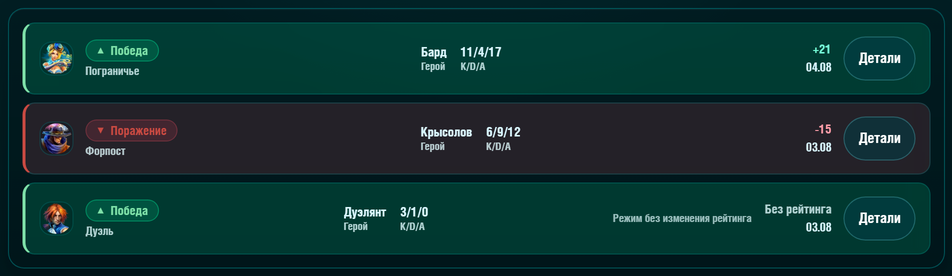
A green frame is a win, a red one a loss. The "Details" button opens the battle breakdown.
Sorting and filters
Matches can be sorted and filtered by game mode.
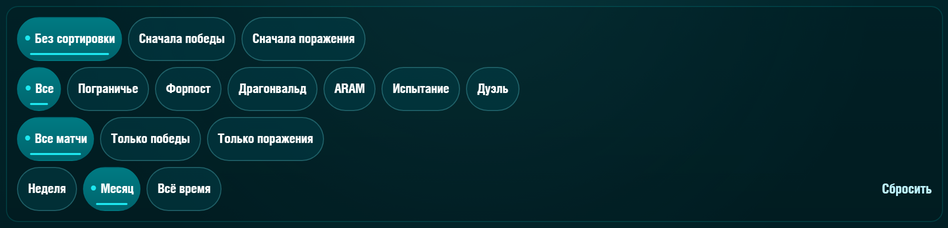
Four groups of buttons. The selected option is highlighted; "Reset" appears only when there is something to reset.
A row of filters sits above the match list. Every option in it is a separate button: press it and the list rebuilds, nothing has to be confirmed. The selected option is highlighted and drops out of the Tab order — there is nowhere to move to, it is already chosen. As long as at least one filter differs from its default, a “Reset” link appears on the right.
Sorting
Filter
“No sorting” means matches go from the freshest to the oldest, and that is the default order. “Wins first” and “Losses first” lift the wanted battles up but remove nothing: inside each part the order stays from new to old.
Mode
Filter
Keeps battles of a single game mode in the list. “All modes” is the default state. The hero rating is counted separately in every mode, so comparing rating changes is fairer inside one mode.
Outcome
Filter
“Wins only” and “Losses only” drop everything else from the list — this is a filter, not an order. The difference from sorting is simple: “Wins first” leaves losses at the bottom, “Wins only” hides them completely.
Period
Filter
Limits the list by time: “Week” (the default), “Month” or “All time”. If it feels like there are too few matches, this is the first filter to check.
The counter above the list
Filter
The line like “84 matches · Week” above the list is the result of the CURRENT set of filters, not the total number of the player’s battles. It is counted under the same conditions as the list itself: mode, outcome and period are already taken into account. The all-time total is in the “Information” section, in the “Total matches” tile. If the counter says “0 matches”, the list really is empty under these filters — “Reset” helps.
The counter counts only what survived the filters.
What a match row is made of
Every battle is one row. The whole row is coloured by outcome: a green frame for a win, a red one for a loss. Left to right it holds the following.
A win: green frame, "Victory" badge, a rating gain with a plus sign.A loss: red frame, "Defeat" badge, a rating drop with a minus sign.
The portrait of the hero the player took into that battle.
The word "Victory" or "Defeat", and the mode name underneath.
The "Hero" cell - the hero name as a word, in case the portrait is not recognisable.
The "K/D/A" cell - three numbers separated by slashes: kills, deaths, assists.
On the right is the hero rating change for that battle: "+18" or "-15". Hover it: the hint shows which value the rating moved from and to, for example "1100 -> 1118".
The date in short form, like "12.03". The full date with the time is in the hint.
The "Details" button opens the battle breakdown with both line-ups.
In some modes the rating does not move at all - there you see "No rating" and the note "Mode without rating changes" instead of a number. It is neither a fault nor a zero: no points are awarded in such a battle.
If no battle survives the filters, the list is replaced by "No matches for the current filter". Below the list is the pager: "<< Prev", the number, "Next >>".
Both middle cells of the row are labelled - the hero name and the three numbers of the battle.Victory - pointing upDefeat - pointing down
Why a fresh match is not in the list yet
One rule applies both to the match list and to the hero battle history: only battles recorded at least 10 minutes ago are shown. The caption “Matches younger than 10 minutes are hidden” means exactly this — the age of the record, not the length of the battle itself.
The reason is that a result does not arrive at the site in one piece: the fact of the battle comes first, while the rating change, K/D/A and team rosters are written afterwards. Showing such a record right away would mean showing a match with an empty or wrong rating and silently rewriting it later. So the record is held for 10 minutes and only then reaches the lists, the counter above them and the hero statistics.
Nothing has to be done: in 10 minutes the match shows up on its own, a page refresh is enough. For the same reason a battle just played does not change the win percentage and the hero rating instantly.
A fresh battle takes the first place in this list as soon as its record turns 10 minutes old.
The “Match details” section shows extended statistics for a specific battle: team compositions, player metrics, and the final result.
For every player you see the hero rating change, the AFK flag and kills, deaths and assists.
Player nicknames are clickable, so you can open ally and opponent profiles from match details.
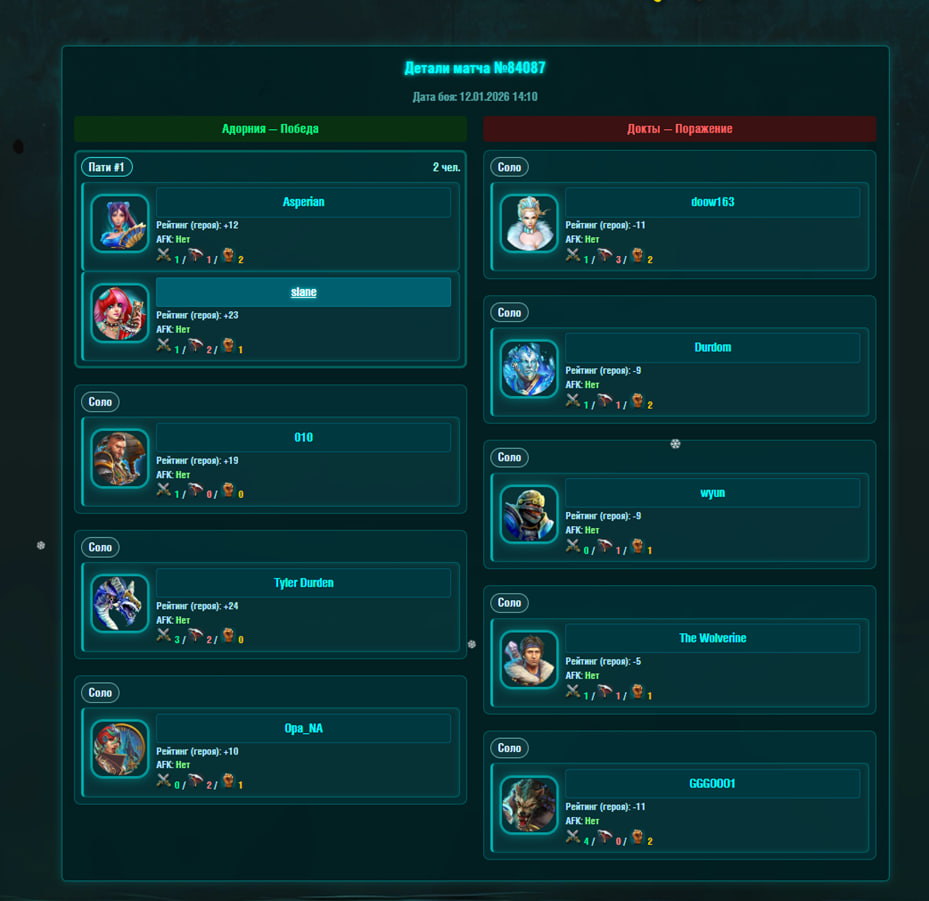
The battle header and the two teams
At the top is a "Back to statistics" button, under it a heading like "Match details No. 123456" and a "Battle date:" line with the date, the time and the mode. Below that the screen splits into two columns, one per team.
The teams are called "Adornia" and "Docta" - these are the sides of the conflict in the game, not names of player squads.
Next to the team name stands its result: "Victory" or "Defeat". The winners' column is highlighted as a whole, so the outcome is clear at a glance.
Under the team name is its combined score in three icons: the total kills, deaths and assists of all five. That line tells you whether the battle was a rout or an even trade.
If a line-up failed to record, "No players" is shown instead, and if there is no battle at all - "Match data not found".
A player row
Each column holds five rows, one per player. Let us read a row in order.
The mark "Party #1" or "Solo" - whether the player entered the battle as a group or alone. The same party number on several rows means those people came together.
The "coin" with a medal and a number is the HERO rating in this mode and the rank that rating corresponds to. The hint spells it out: "Rank: Sergeant (1520)".
The portrait and the name of the hero played.
The nickname is a link: it opens that player's profile, ally or opponent alike.
The "AFK" badge under the nickname means the player left the battle or stood through it. The same mark is repeated as an icon on the right.
A separate line "Account rating: 1188" with its own medal. This is the SECOND number - do not mix it up with the hero rating in the coin on the left: one is about the player as a whole, the other about a particular hero in a particular mode.
Three icons with numbers - the kills, deaths and assists of this player specifically.
On the right is the hero rating change for the battle ("+18" or "-15"), and under it the transition "1100 -> 1118": what it was and what it became. For someone who went AFK there is an offline icon instead.
The medal in the coin is the hero rankK — killsD — deathsA — assists
Authorization is available through the report submission button.
The report button sits in the profile header — signing in happens through it as well.
How to sign in
If you registered through Telegram, enter your login, which is your in-game nickname, and your password.
If you registered through Steam, open a browser.
Open Steam: https://steamcommunity.com/.
Sign in to your Steam account.
Open Prime World Classic in the same browser: https://pw.26rus-game.ru/stats/.
After that, try signing in to the account.
What you get after signing in
Account notifications
Notifications
After authorization, account notifications become available. They can include charisma notifications and reports submitted against you by other players.
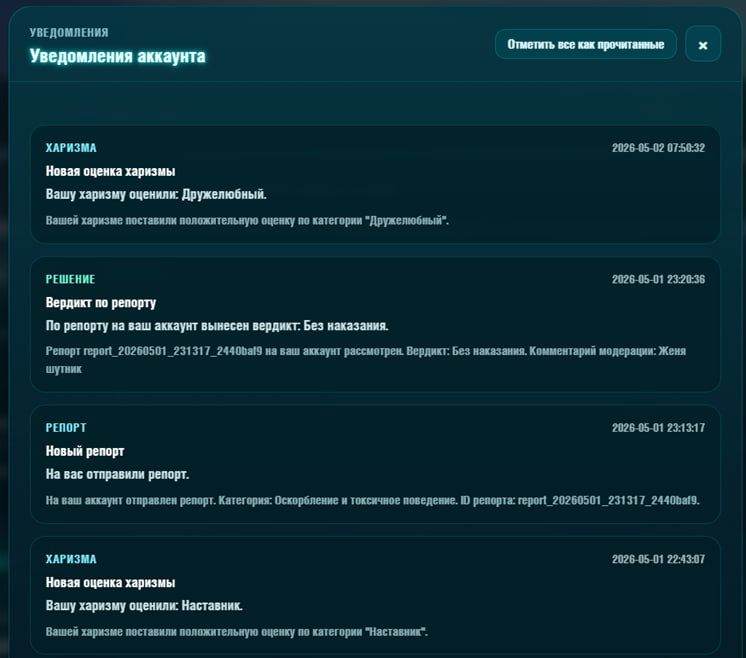
The feed shows charisma votes, incoming reports and the moderation verdicts for them.
Charisma
Social system
After authorization, you can rate a player once per day. Charisma shows social feedback from other players. Positive votes can be earned for friendliness, leadership, and helping the team, while the negative part reflects dislikes and unsporting behavior.
The notifications window
The bell in your own profile header opens the "Account notifications" window. The number in the circle next to the heading is how many messages you have not read; at zero there is no circle at all.
The notification feed: a type label and a date on every message, with the heading and the text below.
Four buttons above the feed filter the messages: "All", "Unread", "Reports", "Charisma". The "Mark all as read" button clears the counter in one go.
Every message carries a type label on the left: "System", "Report", "Verdict", "Charisma", "Achievement". The label "All players" means a broadcast - it did not arrive for you personally.
Messages of the "Report" type arrive when a complaint has been filed AGAINST YOU. Such a message is not a punishment in itself: it is a warning that a complaint came in.
The "Verdict" type is the outcome of a review. The heading says how it ended: "No punishment", "Warning", "Chat mute", "Temporary ban", "Permanent ban" or "Punishment lifted". If the moderator left a comment, it arrives in the same place.
The "Charisma" type means another player rated you; the text says in which category.
The feed is split by time: "Today", "Yesterday", "This week", "Earlier". An empty window says "No notifications yet".
Prime crystals and their history
Prime crystals are the in-game currency from the castle. They are granted for quests and spent on cosmetics: flags, frames, skins. They have no effect on combat stats.
This icon with a number in the profile header opens the crystal history.
"Current balance" - how many crystals there are right now.
"Total earned" - the sum of all credits over all time, in green and with a plus sign.
"Total spent" - the sum of all debits, in red and with a minus sign.
"Audit (expected balance)" is hidden behind a disclosure. It is a service reconciliation: everything received minus everything spent. It adds nothing for an ordinary player and only matters when it disagrees with the balance.
The table has three columns: "Date", "Source" (for example "Quest #12" or "Purchase #7") and "Change" - the amount with a sign. The "All", "Income" and "Expense" buttons leave only the rows you need.
Profile appearance
Appearance changes how your page looks. Everyone who visits your page sees the change. Only the owner of the account can change it.
Appearance changes how your page looks to everyone who opens it: the banner above the profile, the picture in the background, the colours of the panels and the frame around the avatar. It does not affect statistics, rating or matches in any way — it is only the look.
Where to open it
Sign in — through the report button in the profile header.
Open YOUR OWN profile. On someone else's profile there is no settings button, even if you are signed in.
Press “Customize profile” in the header — the “Profile settings” window opens over the page. Close it with the “Close” button, the Esc key, or by clicking outside the window. Without scripts there will be no window: the same button then simply opens the settings page.
What appearance is made of
The window is split into sections, and each one is responsible for its own thing. They can be changed separately — for example, take the banner from one set and buy the frame on its own.
“Look sets” — a ready-made bundle: banner, background, colour, page skin and frame all at once. The simplest way: put a set on and everything changes together.
“Avatar frame” — the wreath around your circle with the first letter of your nickname. There are no pictures of your own in a profile: the circle always holds a letter.
“Banner” — the wide picture at the top of the profile. It can be set on its own, there is no need to wear a whole set for it.
“Profile background” — the picture behind the profile page.
“Colour” — the colour of buttons and highlights on your profile.
“Favourite heroes” and “Featured achievements” — the showcases on the first tab of the profile: up to five heroes and up to six achievements. They cost no crystals, it is a choice out of what you already have.
“On sale” — what you do not have yet and what is sold one item at a time for crystals: separate banners and other appearance items. Everything you already own is in the sections above.
Sets: what is inside them
This is how a set looks in the settings window: a picture, a name, a short caption and the state — “Worn”, “Available”, “Not earned yet” or the price.
A set changes the whole page: the banner, the background, the colour, the page skin and the avatar frame. Most sets have a frame of their own, and it is not sold separately — it unlocks together with the set and only for its owner.
“Sky Citadel” is the free set. It is open to everyone who is signed in and does not need to be bought: it shows what appearance looks like at all.
“Crystal Hall” is not sold for crystals: it is given for the “Heart of Prime” achievement — a million prime over all time. Until the achievement is unlocked, the card says “Not earned yet” and there is no buy button. This set has no frame — only a banner, a background, a colour and a page skin.
One exception about frames: “Ashen Front” comes with the “Bronze Circlet”, and that one is also sold separately for 5 crystals. If you have already bought the circlet, the set adds nothing new — the crystals for it will have been spent twice.
A set is bought once and stays yours forever. You can take it off and put it back on as often as you like — no crystals are charged again for that.
Avatar frames
The frame is worn over the avatar circle and is visible to everyone who opens your profile.
“Aqua Circlet” is free — it is open to everyone who is signed in, right from the start.
Three are sold separately: the “Bronze Circlet” and the “Silver Circlet” — 5 crystals each, the “Gold Circlet” — 30.
The set circlets — “Citadel Circlet”, “Frost Circlet”, “Verdant Circlet”, “Amethyst Circlet”, “Blossom Wreath” — are not sold separately. Buy a set and its frame unlocks; take the set off and the frame is still yours and can be worn on its own.
Two more frames are not sold at all and are given for achievements: the “Crystal Wreath” for “Aegis” (250 wins), the “Emberforge Wreath” for “Fallen Keep” (100 wins on Outpost). Until the achievement is unlocked, the card says “Not earned yet”.
How to buy, step by step
A purchase cannot be undone: crystals cannot be refunded and what you bought cannot be exchanged. That is exactly why the site asks again before charging — read the question on the button, it names the price.
Prices in the settings window are marked with this icon. The same icon stands next to your balance above the list of sets.
Above the list of sets it says “You have N crystals”. If that line is missing, the balance is unknown right now and the purchase will not go through.
Find the set or the frame you want. The price with the crystal icon is under its name.
If you do not have enough crystals, the price is replaced by “Need N ◆ more”, and there is nothing to press: a set simply has no buy button, and a frame has one but it is switched off. Both of them name exactly how many crystals are missing.
If you have enough, press “Buy”. A purchase takes two steps: in place of the button a question appears — “Buy for N ◆ for sure?” — with “Cancel” next to it, and your balance above them. The first press charges nothing.
After you confirm, the crystals are taken and the item becomes yours. The spending shows up in the crystals history as a separate line — with the name of the purchase and the “audit” tag, so that it stands out among the in-game ones.
What you have bought is put on with the “Wear” button and taken off with “Take off”. No crystals are charged for that, not once.
Whatever stands in the “On sale” section is bought the same way — separate banners and other single appearance items. The order is the same: the price, “Buy”, the question with the price, the charge.
How to get the plain look back
Press “Take off” on the set you are wearing — the profile goes back to the standard look, with no banner and no background. Nothing you bought disappears: it all stays in the list and can be put back on at any moment.
Common questions
Does appearance affect statistics or rating? No. It is only the look of the page.
Is appearance visible in the game itself? No, it lives only on this site.
Where do crystals come from? They are the same prime currency from the castle as in the game: you get them for quests. The section about them is right above this one.
Can crystals be refunded for a purchase? No, a purchase cannot be undone — that is exactly why the site asks again before charging.
There is no “Customize profile” button — why? Either you are not signed in, or you have someone else's profile open. Your own appearance can only be changed on your own profile.
Reports for unsporting behavior must be submitted within two hours after playing together.
How to submit a report
The report button is in the header of the profile you are reporting.
Open the profile of the player you want to report.
Click the report submission button.
Complete authorization.
Fill out the form.
Evidence
The more evidence you provide, the more likely the violation will be reviewed quickly and the player will receive a penalty right away.
If you have video evidence of voice chat violations, serious bug abuse, or intentional feeding, send it to our social networks.
What to fill in on the form
The window is called "File a report". You do not need to pick the player being reported - they are taken from the profile you pressed the button in, and their nickname is visible in the top card.
The moderation hammer: complaints are reviewed by people, not by a machine.
"Reason" is a list of seven entries: "Insults and toxic behaviour", "Unsportsmanlike behaviour", "AFK or leaving the battle", "Suspected cheating", "Offensive nickname", "Voice chat", "Other". Pick the closest one; use "Other" only when none of them fits.
"Description" is a required field. Keep it short and factual: what happened, at what minute, what exactly was said or done. An empty description or a couple of letters gives the review nothing to work with.
"Comment on the evidence" is a caption for the attached pictures: what to look at on them.
"Photo evidence" - at least one screenshot, at most five. Images are compressed before sending, you do not need to shrink them yourself.
The "Only after a shared match" card is a reminder of the main condition: a complaint is accepted only if you and this player had a battle together that ended no more than two hours ago.
A report and an appeal are different things and are filed in different places. A report is a complaint about SOMEONE ELSE'S behaviour, from the offender's profile. An appeal is disagreement with YOUR OWN punishment, from your own profile, from the punishment card.
What happens after you send it
The complaint goes to moderation. There is no instant punishment: a person makes the decision, and that takes time.
When the review is over you get a "Your report has been reviewed" notification with the decision. Look for it in the bell on your own profile.
The decisions are these: "No punishment", "Warning", "Nickname lock", "Chat mute", "Temporary ban", "Permanent ban".
The punished player gets their own notification with the type and the term, and the punishment itself appears in their profile - in the "Player punishment history" block. If the punishment is a ban or a mute, the player also lands in the server-wide "Insulator" list.
"No punishment" does not mean the complaint was ignored: it means no violation was found in it.
The “Offender insulator” section contains active bans and chat mutes for players.
Every punishment shows its level, the date it was issued and the time left until it expires.
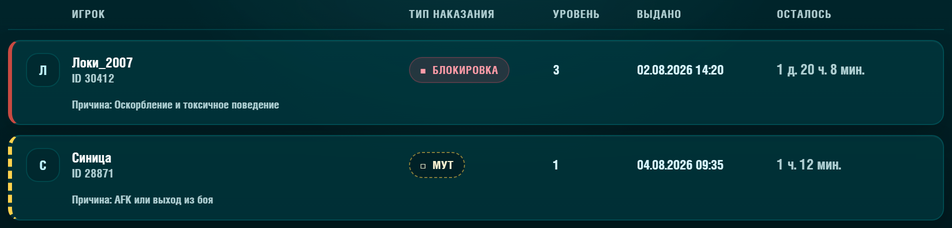
The insulator shows active punishments only. Once the term is over, the row disappears from the list on its own — nothing has to be lifted by hand. The nickname in a row is clickable and leads to the player profile, the player ID stands next to it, and the reason is given on the second line.
A block and a mute are different punishments
The punishment type is written on the badge in the row: “Block” or “Mute”.
Block
Punishment
Closes the game entirely: while a block is active, the server cannot be entered. The term is counted in days — one block level equals one day.
Mute
Punishment
Closes communication only — chat and voice. Playing is still possible: the player joins the server and takes part in matches but cannot write or speak. A mute is shorter than a block: one level equals three hours.
Punishment level and “Remaining”
“Level” is not the severity of the offence but a repeat counter. Every new punishment of the same type raises the level by one, and the term grows with it. That is why the same violation costs more the more often a player repeats it.
Block: the term equals the level in days. Level 1 is a day, level 3 is three days, level 7 is a week.
Mute: the term equals the level multiplied by three hours. Level 1 is three hours, level 4 is half a day.
“Issued” is the date and time the punishment started. The term is counted from it.
Block levels and mute levels are counted separately: a mute does not raise the block level and the other way round.
“Remaining” on the right of a row is how much time the punishment still has, in the “2 d. 5 h. 30 m.” format. It is not the whole length of the punishment but exactly the remainder: the value goes down by itself and is recalculated every time the page is opened. When the remainder hits zero the punishment is lifted and the row leaves the insulator.
Both values sit in the same row: "Level" closer to the middle, "Remaining" on the right.
If you disagree with a punishment, an appeal is filed from your own profile, from the punishment card. The filing window is limited, so it is better not to wait.
An insulator row and the bar above the list
The insulator is a server-wide list, not a section of one profile. It gathers every player who currently has an active ban or mute.
One row in full. The reason sits on a second line, under the nickname.The counters double as a filter: clicking one leaves punishments of a single kind.
Three counters sit above the list: "Total", "Bans", "Mutes". They double as buttons - clicking one leaves only punishments of that kind.
Next to them is the "Nickname or ID" search with a "Find" button. You can search by nickname and by numeric identifier alike.
On a wide screen a header stands above the rows: "Player", "Punishment type", "Level", "Issued", "Remaining". On a narrow screen the header is dropped and the labels move into the rows themselves.
A row holds: a circle with the first letter of the nickname, the nickname itself as a link to the profile, and under it "ID 12345". The insulator is one of the few places where a player's numeric identifier is visible.
A second line carries the "Reason" - the category the punishment was issued for, in the same words as in the report form.
A narrow rail runs along the left edge of the row. For a ban it is solid and red, for a mute dashed and yellow. The type reads from the rail and from the badge alike, so colour alone is never the only signal.
An empty list is labelled differently depending on why, and the wording tells you the reason: "No one found by that nickname or ID" - the search came up empty; "Nobody currently has that punishment" - the filter emptied it; "There are no active offenders in the insulator right now" - the list really is empty.
Punishments in your own profile
A profile has a separate "Player punishment history" block. It is not the same as the insulator: the insulator shows only active punishments across the whole server, while this block shows all punishments of one player, including the ones already served. The badge on top counts how many of them are in force right now.
This icon stands in the heading of the punishments block.
The punishment type as a word: "Warning", "Mute", "Temporary ban" or "Permanent ban".
The state badge: "Active" - in force right now; "Expired" - the term ran out on its own; "Revoked" - moderation cancelled it; "Completed" - closed some other way.
"Issued" - when the punishment started, "Until" - when it ends. A permanent ban says "Forever" instead of a date.
"Moderator" - who issued it. "System" means the punishment was issued automatically, not by a person.
"Report ID" - the number of the complaint the punishment grew from. Quote that number if you write to support.
"Reason" - the category of the violation.
If there has never been a punishment, the block says "This player has no registered punishments from the report system yet".
Appealing a punishment
An appeal is a statement that a punishment was issued in error. It is filed with the "Submit appeal" button right inside the punishment card, in YOUR OWN profile. There is no such button in the insulator and there cannot be: the insulator is a shared list, and you can only appeal your own.
An appeal is read by moderation, not by a machine: the clearer it is written, the sooner it is reviewed.
Account owner only, and only for their own punishment. You cannot appeal on a friend's behalf.
The window is two days from the moment it was issued. After that the button goes dark and a line appears next to it: "The appeal submission period has expired".
One punishment, one appeal. If it has already been sent, the button is replaced by "An appeal for this punishment has already been submitted".
In the window you must fill in "Why you disagree with the punishment" - a required field, and "I did nothing" is not enough for a review. Below it are the optional "Additional comments" and up to five images: screenshots of the chat, the match result, client errors.
The top of the window repeats the punishment data: the type with its state badge, who issued it, the submission deadline and the report ID. You do not need to copy them into the text - they are already attached.
After sending you get the answer "Appeal submitted. Moderation will review it separately". The outcome arrives as a notification; if the punishment is cancelled, its state in the profile becomes "Revoked".
Notifications
Account notifications0Unread
No notifications yet.Report decisions, charisma ratings and system messages will appear here.

 Recruit